


Blog


Listen to the Blog
If your emails, tasks, or reports in HubSpot are showing the wrong time, it can quickly create confusion across your team. Whether you're working with international clients or setting up your account for the first time, having the correct time zone is essential.
In this guide, you’ll learn exactly how to change the time zone in your HubSpot account, along with tips to avoid common mistakes.
Why Setting the Correct Time Zone in HubSpot Matters
-
Ensures accurate timestamps for emails, calls, and activities.
- Helps in scheduling meetings at the correct time
- Keeps reports and analytics data reliable
- Aligns your team when working across different locations
- Prevents automation workflows from triggering at the wrong time
Things to Check Before Updating Your Time Zone in HubSpot
Before you update your time zone in HubSpot, make sure:
-
You have access to your HubSpot account.
- You have the required permissions to update account settings
- You know your correct time zone (based on your location or business operations)
Step-by-Step Guide to Change Time Zone in HubSpot
Follow these simple steps to change your time zone:
-
Log in to your HubSpot account
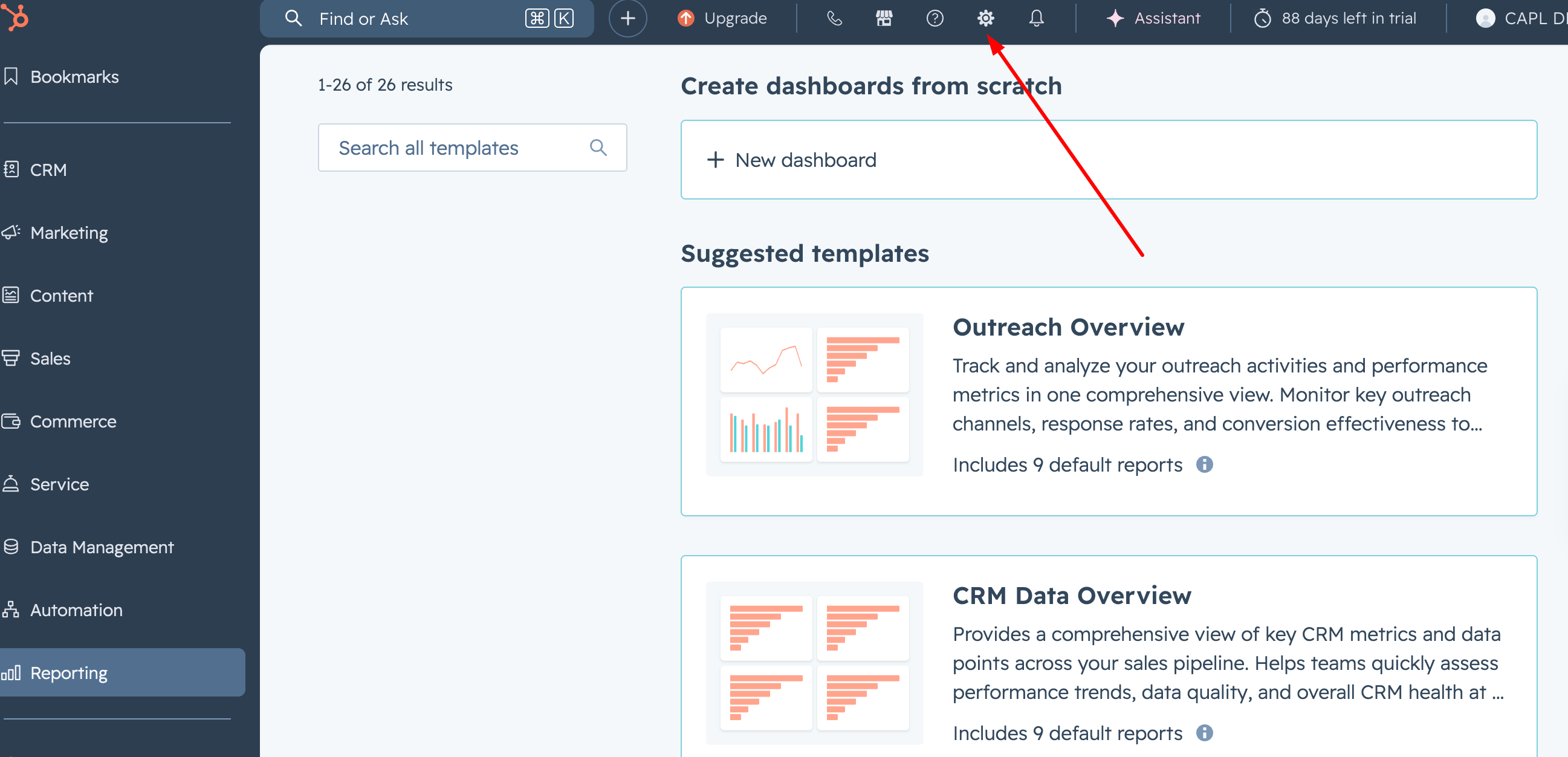
- Click on the Settings icon in the top navigation bar.
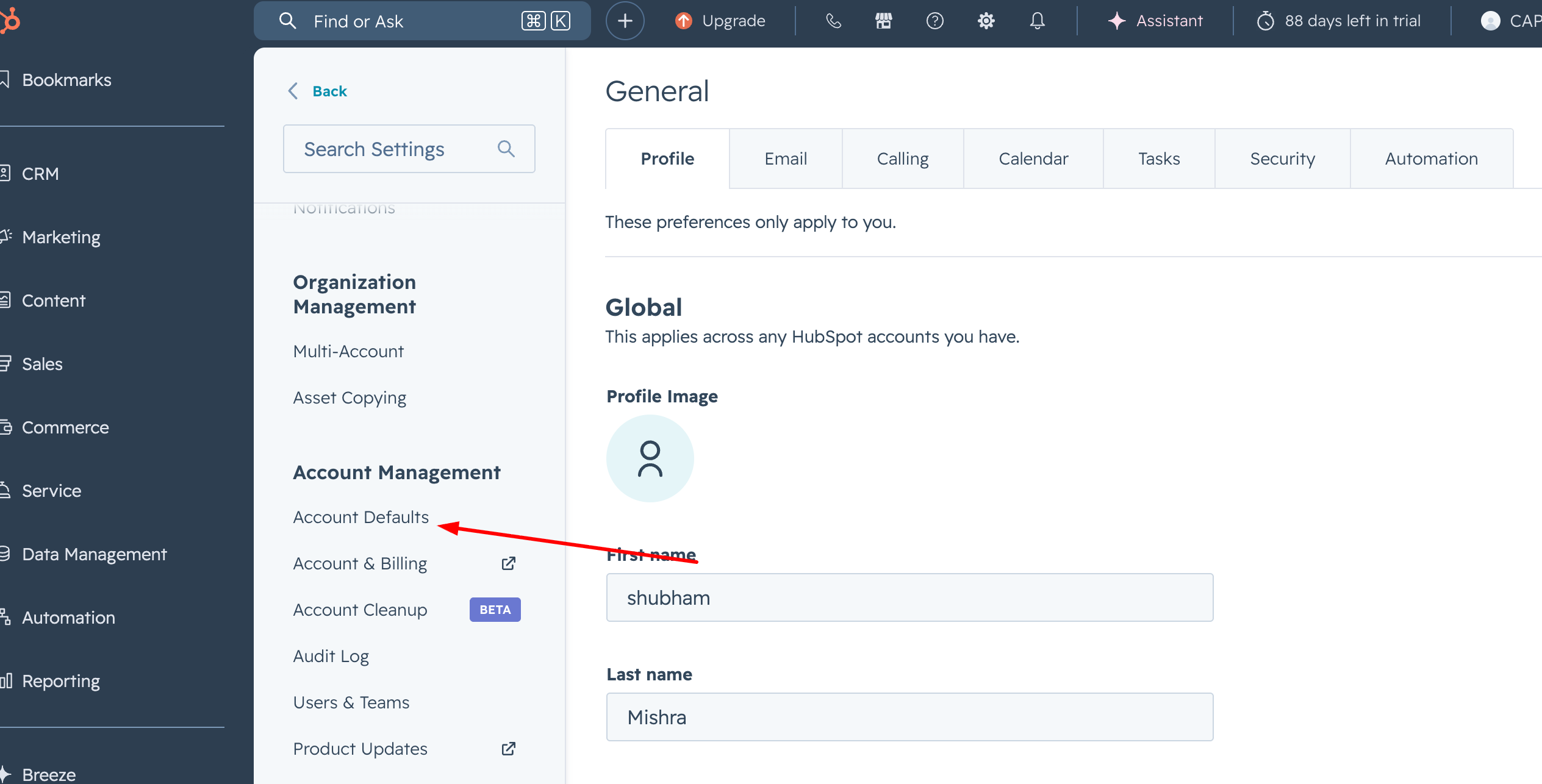
- In the left sidebar, go to Account Defaults.
- Under the General tab, locate the Time Zone dropdown.
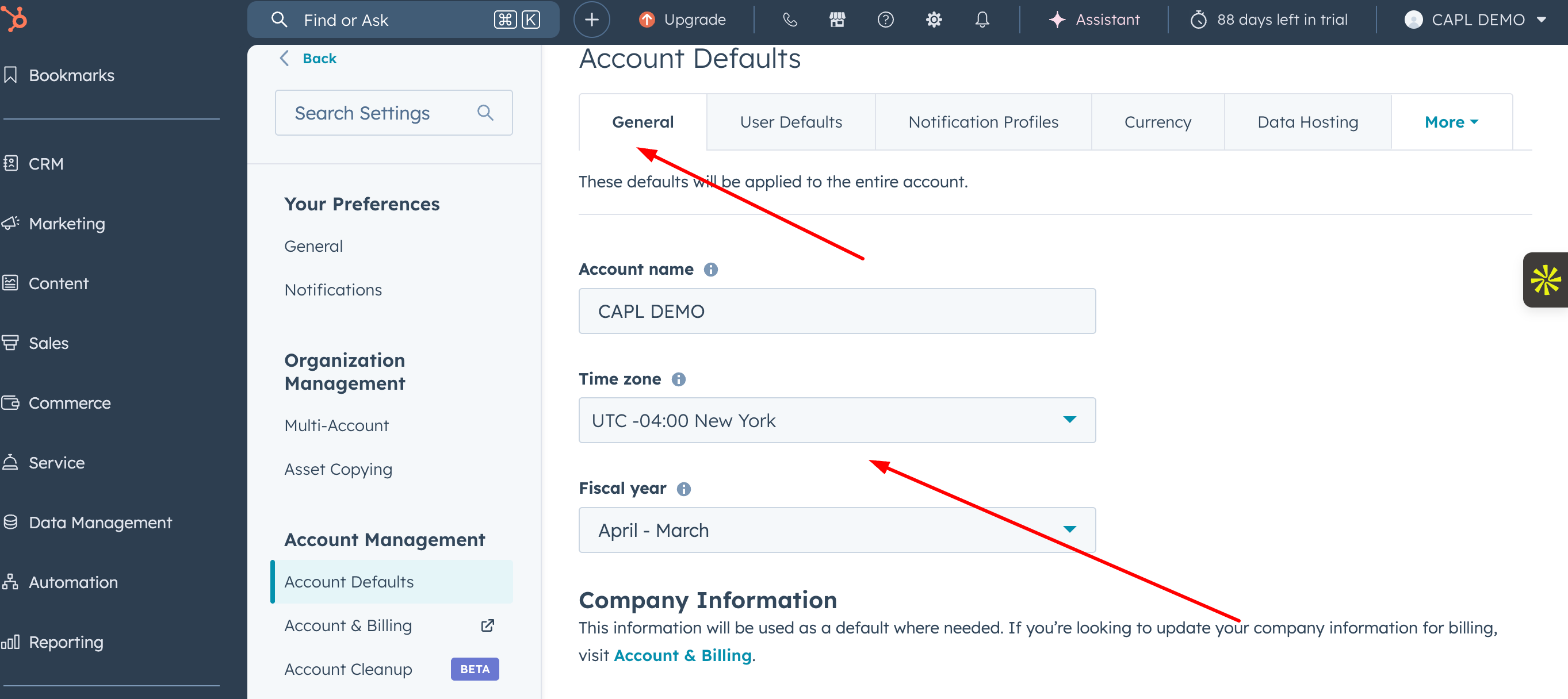
- Find the Time Zone dropdown.
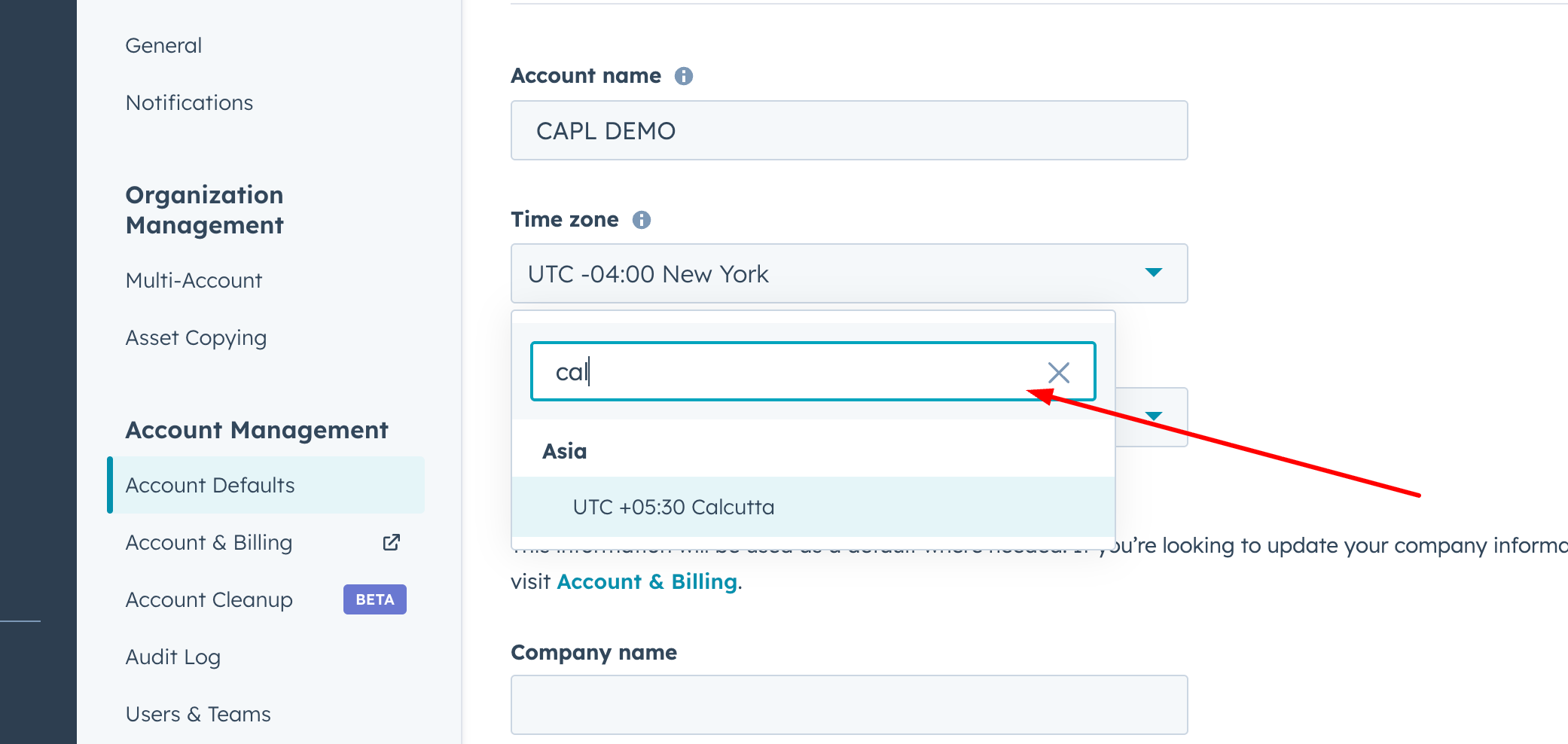
- Select your correct time zone
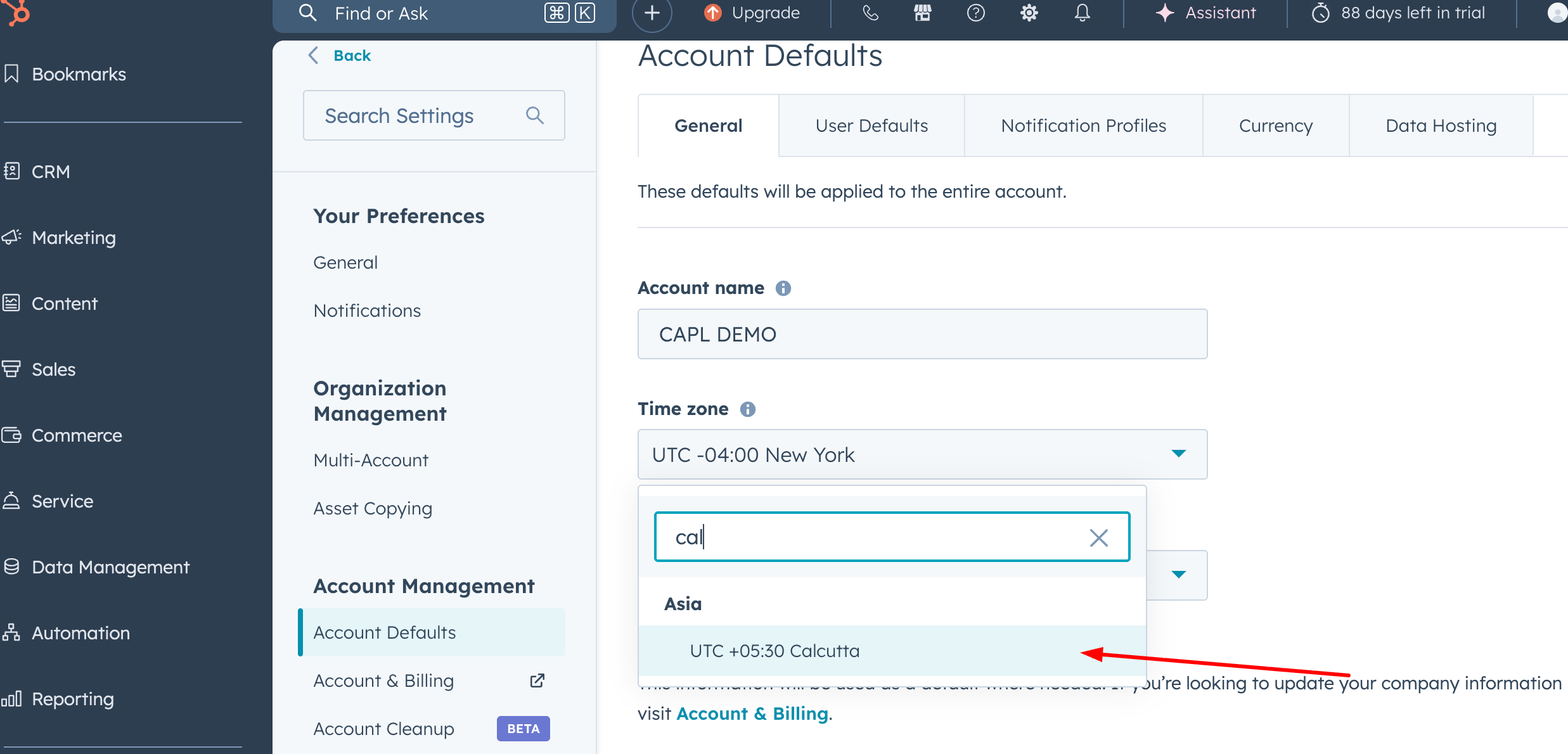
- In the confirmation dialogue box, click “Yes, change time zone”
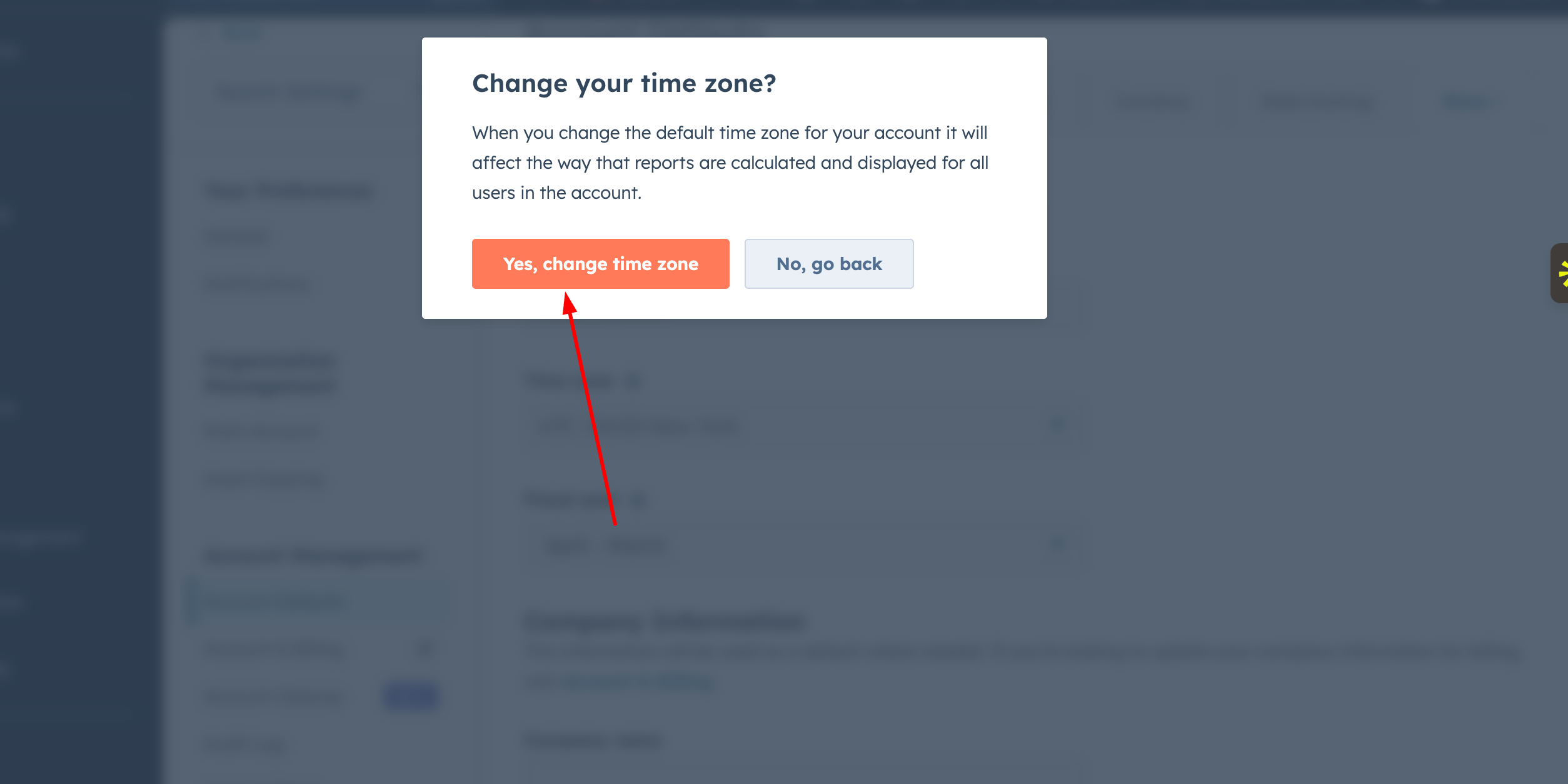
PRO TIPS :
Some elements, such as activity timestamps and record timelines, may still use your computer’s local time zone rather than the HubSpot account setting.
Common Issues (And How to Fix Them)
-
Time is still showing incorrectly
Check if you updated the correct section (user vs account settings) - Meetings scheduled at the wrong time
Verify your meeting tool's time zone settings separately - Automation workflows are triggering at the wrong hours
Review workflow time settings and delays - Different time zones for team members
Ensure each user has updated their individual profile settings
Conclusion
Setting the correct time zone in HubSpot might seem like a small step, but it plays a big role in keeping your operations smooth and error-free. From scheduling meetings to running automations, everything depends on accurate timing.
I’m a Consultant, Developer, and Entrepreneur who loves to help people make their businesses grow. I’ve been working in the tech industry for over 7 years, and my passion is helping others get the most out of technology.
Related Post
You may also be interested in
-

How to Set Default Language, Date & Number Format in HubSpot (Step-by-Step Guide)
When setting up HubSpot for your team, small settings can make a big difference. Things ...

-

How to Add a User in HubSpot CRM (Step-by-Step Guide)
Adding users to HubSpot is one of the first steps when setting up your team's CRM. ...
-
Step-by-Step.jpg)
How to Set Up 2-Factor Authentication in HubSpot Using SMS (Step-by-Step Guide)
Today, businesses need a centralised system to manage their sales, marketing, and ...