


Blog


Listen to the Blog
Adding users to HubSpot is one of the first steps when setting up your team's CRM. Whether you're working with sales reps, marketers, or support teams, granting the right level of access ensures smooth collaboration and better workflow management.
In this guide, you’ll learn how to add a user in HubSpot in a simple and clear way.
Why Adding Users in HubSpot Matters
- Improves team collaboration within a single centralised system.
- Ensures better data security with controlled access.
- Increases accountability across team members.
- Helps scale your CRM as your team grows.
- Reduces errors and unauthorised data changes.
- Keeps sales, marketing, and support aligned.
- Enables better tracking of activities and performance.
Without proper user setup, your CRM can quickly become messy and inefficient.
Things You’ll Need Before Adding a User
Before adding a user, make sure:
-
You have Admin access in HubSpot.
- The user has a valid email address
- You know what role or permissions they need
Step-by-Step Guide:
-
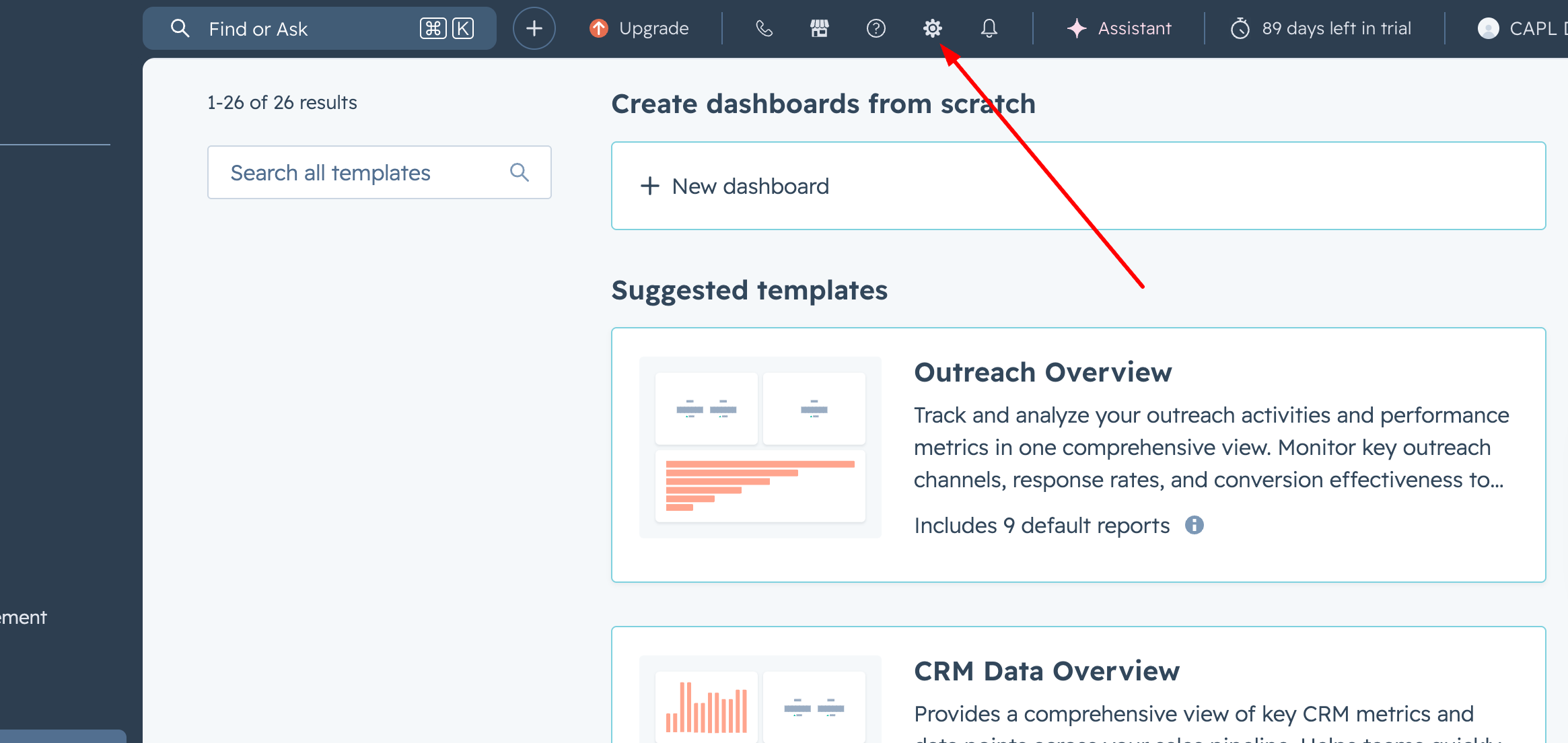
Log in to your HubSpot account and click on the Settings icon.
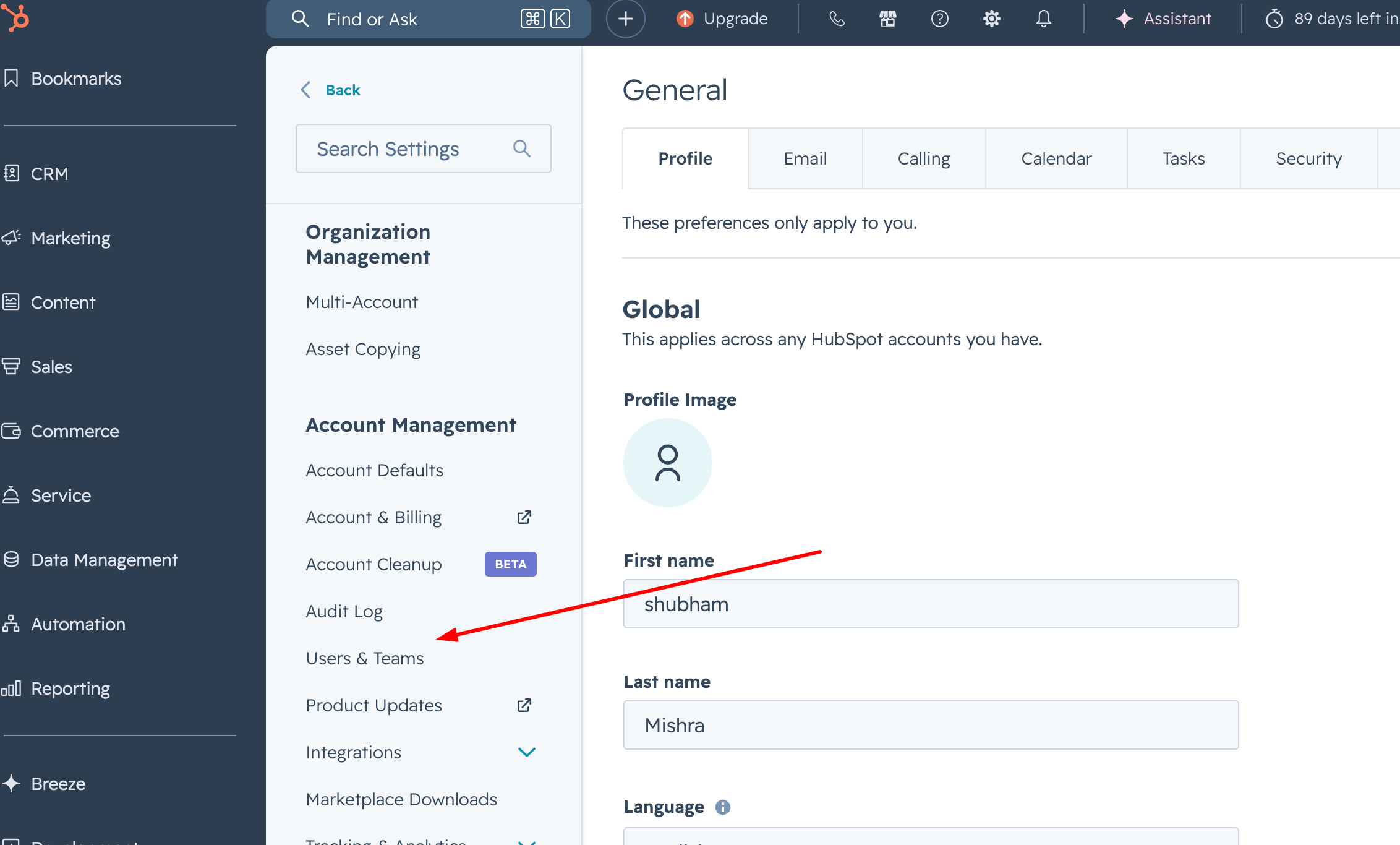
- From the left sidebar, navigate to Users & Teams.
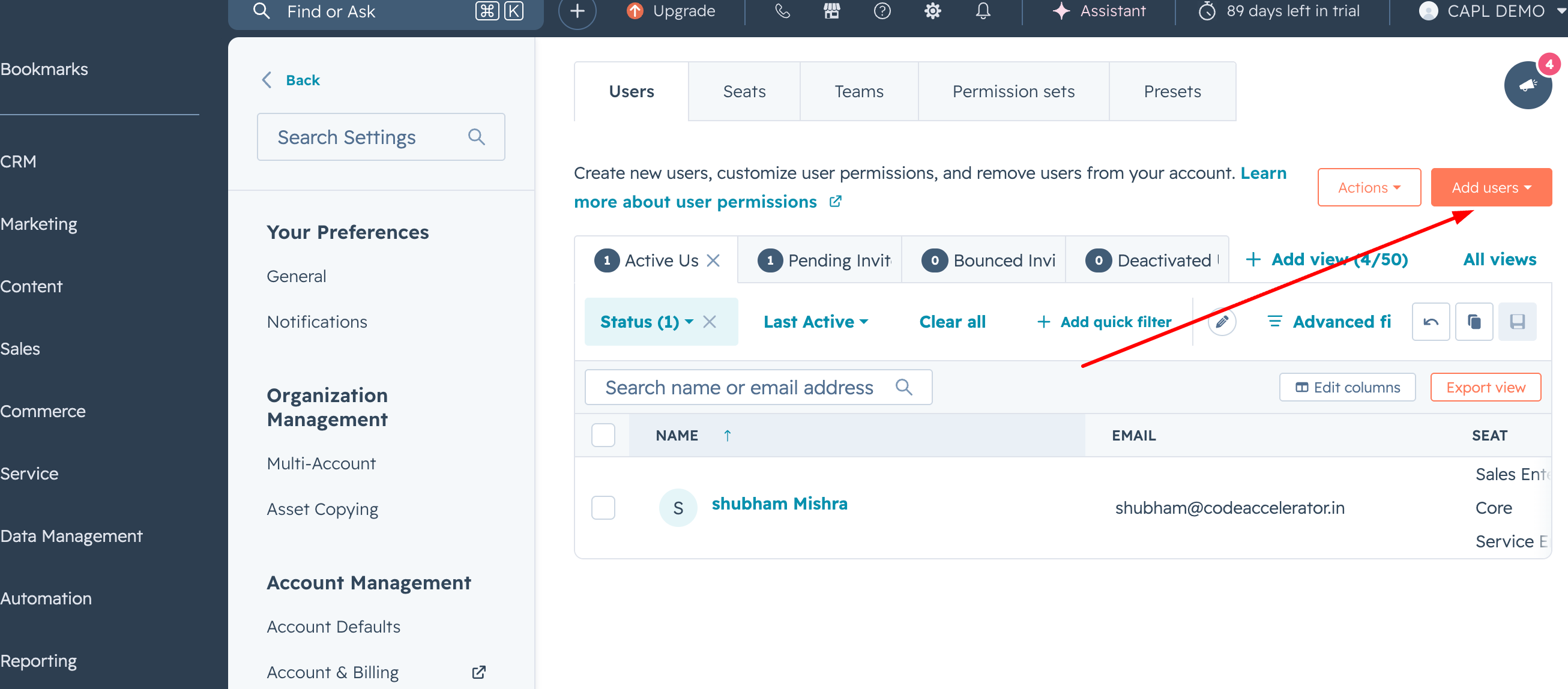
- Click the Add User button in the top-right corner.
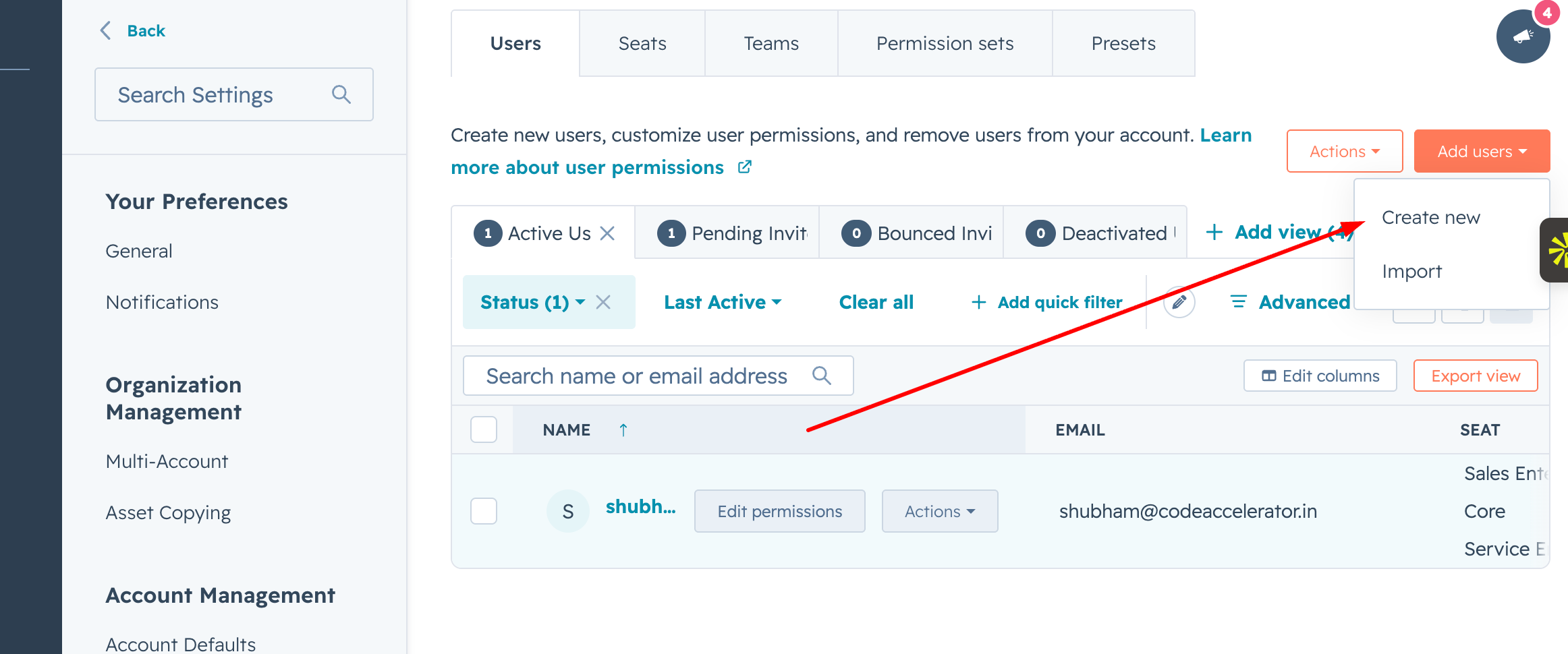
- Click the Create New button in the top-right corner.
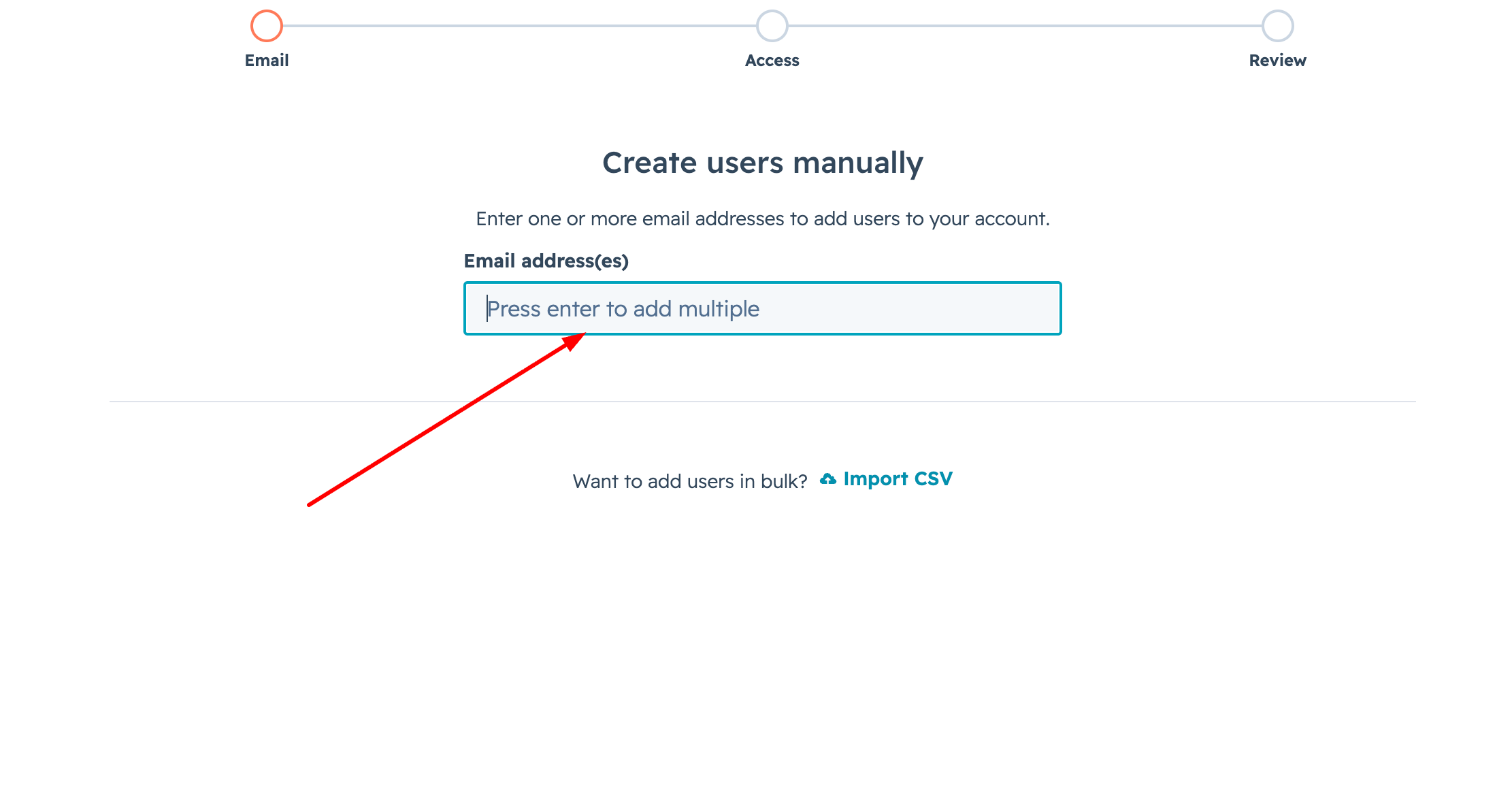
- Add the user’s email address and click Next.
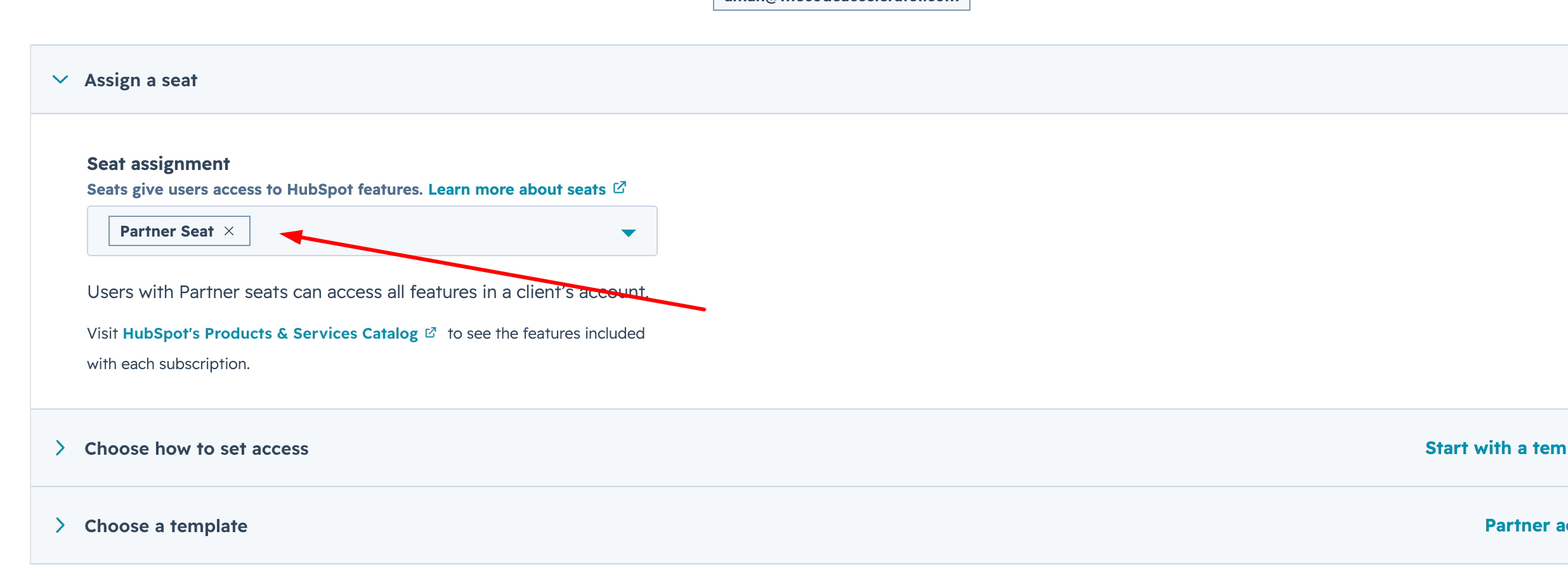
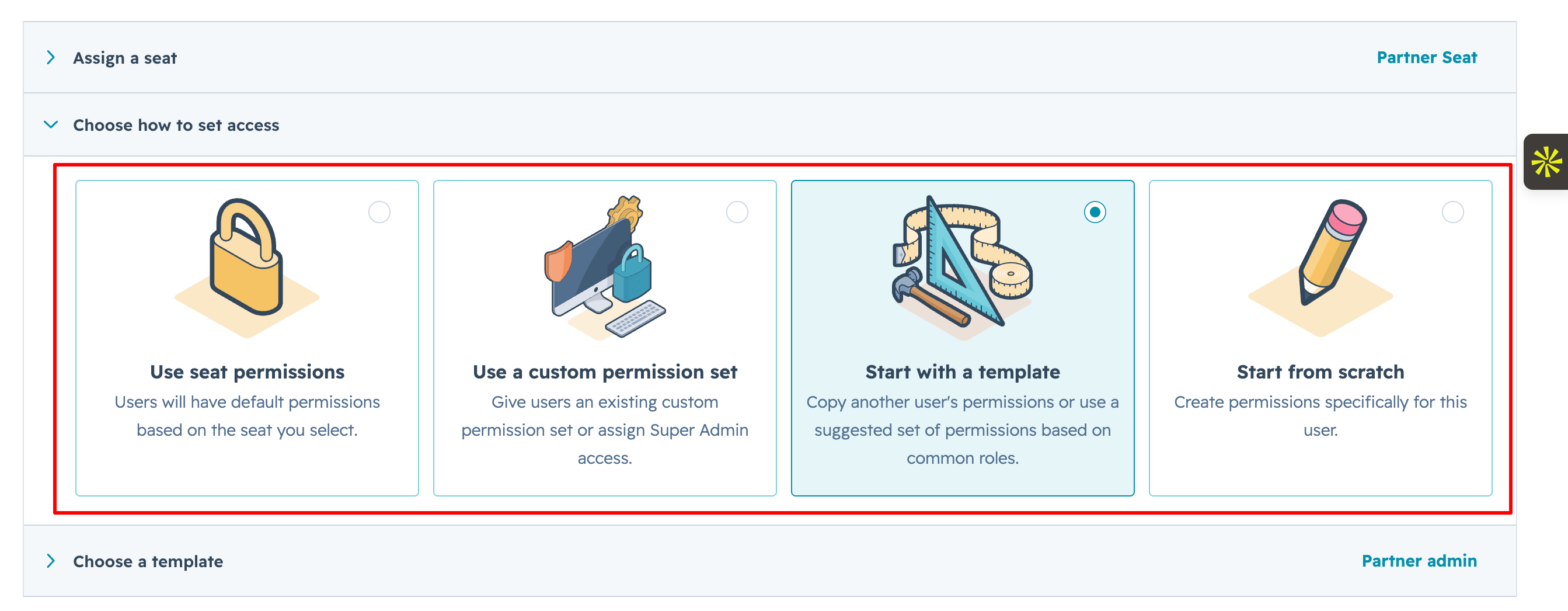
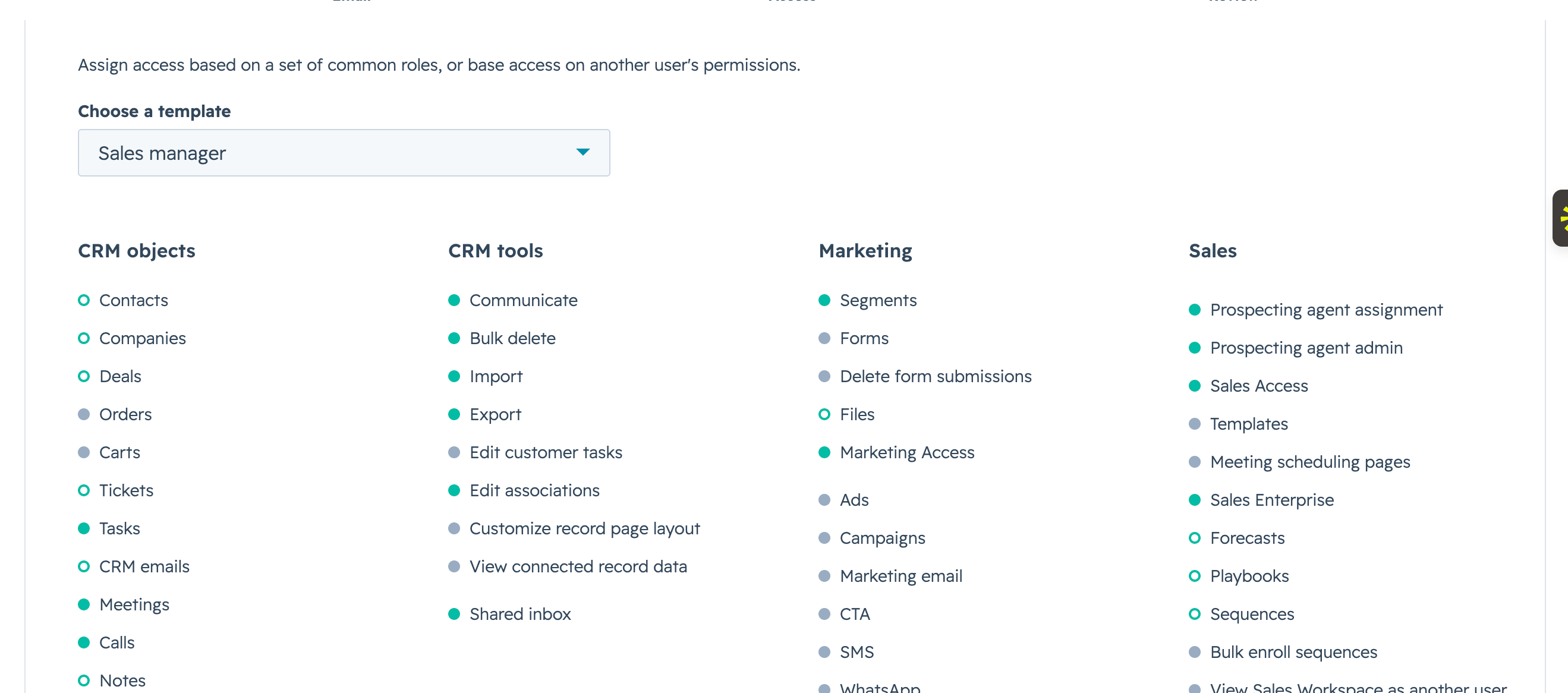
- Choose the appropriate seats, roles, and permissions based on the access the user needs.
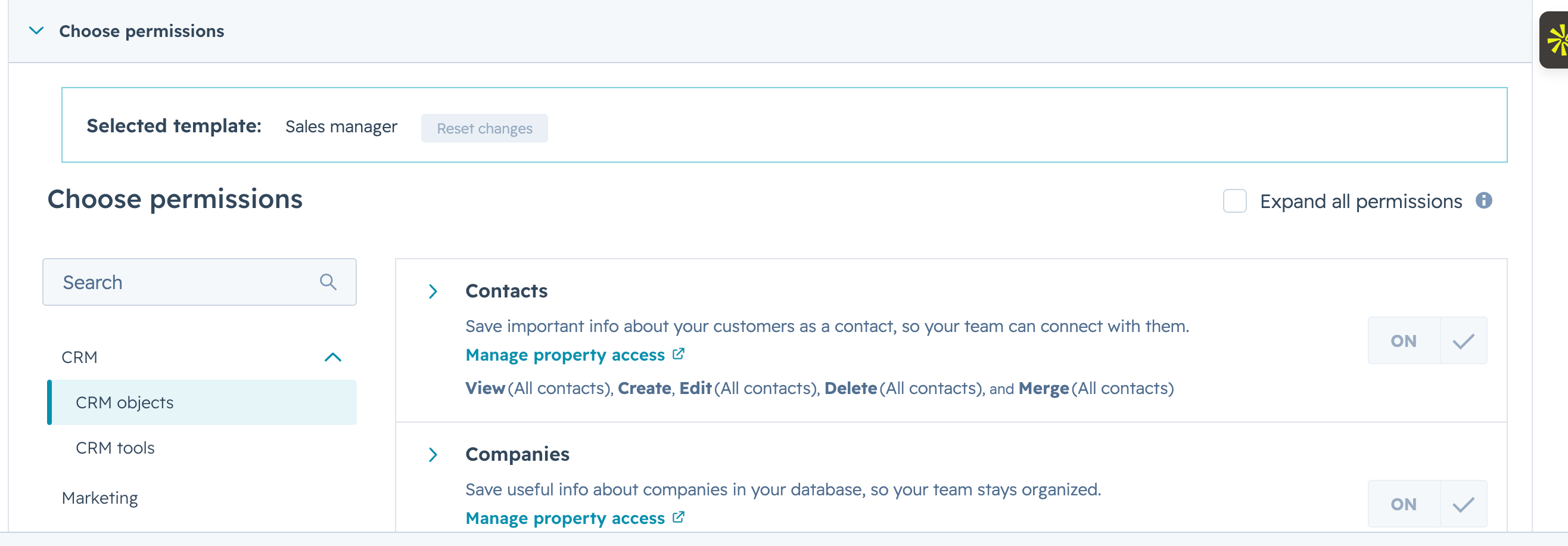
- Click Next and Create User. The user will receive an email to join your HubSpot account.
Troubleshooting Common User Setup Issues
-
User not receiving invitation email:
Ask them to check spam or resend the invite - Wrong permissions assigned:
Update permissions from Users & Teams anytime - Access denied errors:
Make sure the correct role is assigned - Too many admins:
Avoid giving admin access to everyone to maintain control
Conclusion
Adding users in HubSpot is simple, but setting the right permissions is what makes your CRM truly effective. Take a few extra minutes to assign roles correctly; it will save you hours later.
I’m a Consultant, Developer, and Entrepreneur who loves to help people make their businesses grow. I’ve been working in the tech industry for over 7 years, and my passion is helping others get the most out of technology.
Related Post
You may also be interested in
-
How to Set Default Language, Date & Number Format in HubSpot (Step-by-Step Guide)
When setting up HubSpot for your team, small settings can make a big difference. Things ...

-
How to Add Currency in HubSpot (Step-by-Step Guide for Multiple Currencies)
If you’re working with international clients, setting up currencies correctly in HubSpot ...
-
How to Change Time Zone in HubSpot (Step-by-Step Guide for Accurate Data & Scheduling)
If your emails, tasks, or reports in HubSpot are showing the wrong time, it can quickly ...